How to Install a Minecraft Datapack (1.21, 60 Seconds)
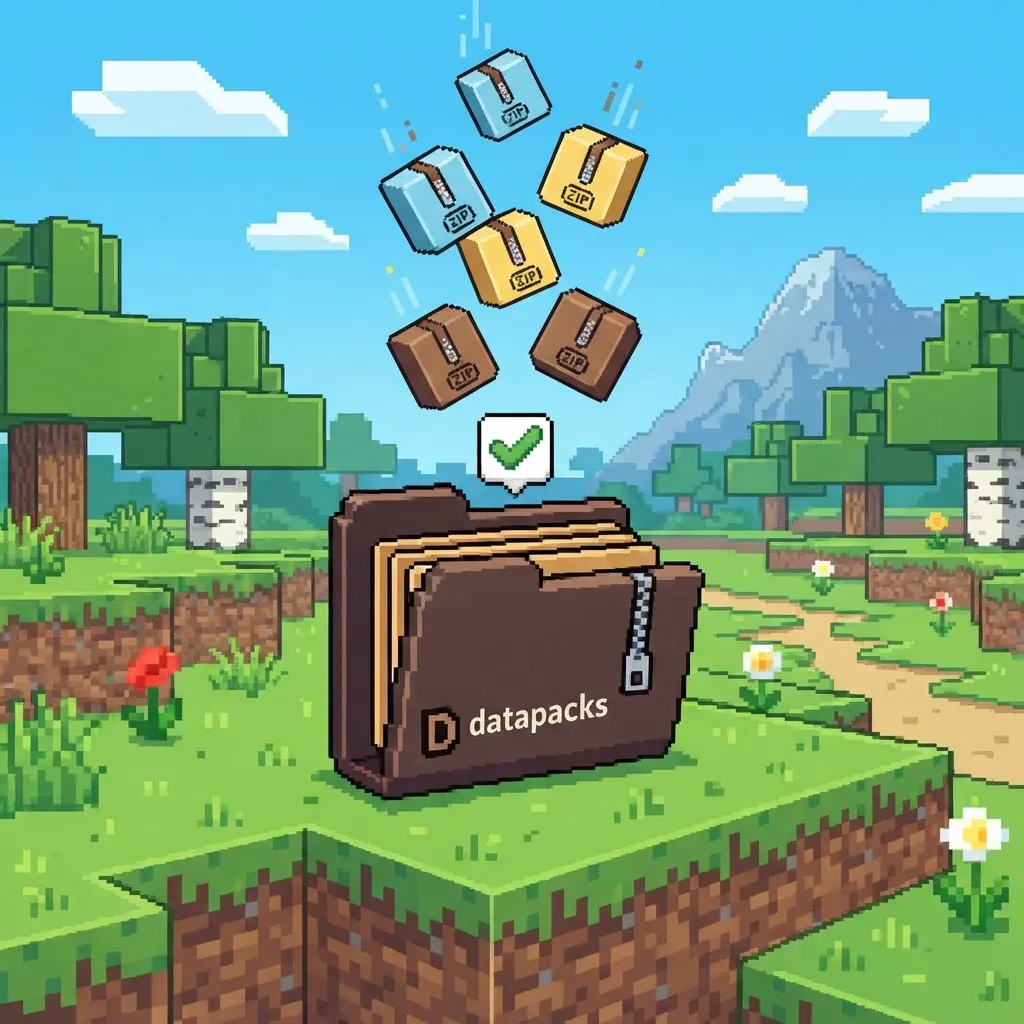
Datapacks are the easiest way to upgrade Minecraft Java without mods — but if you've never used one, the install isn't obvious. Here's the whole process for Minecraft 1.21+. It takes about 60 seconds.
Step 1 — Download the datapack (.zip)
Download the pack you want and keep the .zip exactly as it is. Don't unzip it, don't rename the folders inside.
Step 2 — Open your world's datapacks folder
Find your saves folder (usually .minecraft/saves/), open your world's folder, and open datapacks inside it. On Windows, the full path looks like: %appdata%/.minecraft/saves/<your world>/datapacks/
⛏ Free datapack: all 4 packs — free, no account, vanilla-friendly — browse the hub.
Step 3 — Drop the .zip in
Move or copy the downloaded .zip into that datapacks folder. That's the entire install.
Step 4 — Load it
If you're already in the world, type /reload in chat. If you were outside the world, just open it — Minecraft loads datapacks automatically at world start. To confirm, run /datapack list and look for your pack as [enabled].
Where datapacks actually live (and why "global install" doesn't exist)
The #1 mental model shift: datapacks live inside your world, not inside Minecraft. There is no global datapack folder. Every world keeps its own datapacks folder, so a pack you install in your survival world never touches your creative test world, your friend's world, or any other save.
Three consequences worth internalizing:
- Install per world, every time you want a pack in a new world.
- Backup your world → your packs are backed up with it (they're files in the save folder).
- Share a world (LAN, Realms, server world copy) → everyone who plays that world gets the packs automatically. Players install nothing.
The zip rule, and what pack.mcmeta does
Keep the downloaded file zipped. The inside of the zip should look like this:
MyDatapack.zip
 ⌊ pack.mcmeta          ← ID card: name + pack_format
 ⌊ data/                ← the actual content
     ⌊ minecraft/       ← overrides + functions/tags
pack.mcmeta is the pack's ID card: display name and the pack_format number — the version of Minecraft the pack was built for. If that number is older than your game version, Minecraft either warns or silently disables the pack. That single mismatch is the most common "my datapack stopped working" cause after every Minecraft update (we keep a full compatibility writeup for that).
What silently breaks it: double-unzipping. If you end up with MyDatapack/MyDatapack/pack.mcmeta, the game sees a folder with no ID card and ignores the whole thing — no error, nothing in /datapack list. If your pack doesn't show up, check this first.
Installing on a server (FTP / panel)
On a dedicated server, the datapacks folder sits inside the world folder on the server machine — not your PC:
- FTP / SFTP: connect, navigate to your server's
<world>/datapacks/folder (for most hosts the world is literally namedworld), upload the .zip, then run/reloadin console or restart. - Web panel (Aternos, PebbleHost, etc.): use the file manager — Files → world → datapacks → upload → restart.
- Realms: you don't get file access — use the in-game upload menu instead. Our Realms install guide covers both methods step by step.
Server rule of thumb: one pack per job. Two packs doing the same thing (two vein miners, two home warps) fight over events and cause the weird "it works on my world but not the server" bugs. If you run a public server, test each new pack on a private copy of the world first — a broken loot table on a live server is a rollback nobody wants. Small event-driven packs (HUDs, replanters) are effectively free performance-wise; anything running logic every tick should be tested under load like a plugin.
Keeping packs updated across Minecraft versions
Mojang bumps the data pack format several times a year. The routine that keeps your worlds healthy:
- Before updating the game: note your installed packs (run
/datapack listand screenshot it). - After updating: load the world and read chat — errors name the exact pack that failed. Run
/datapack list: a pack in the disabled list errored on load. - Fix or wait: simple packs often just need the author's updated release (or a one-line pack.mcmeta bump for trivial packs); command-heavy packs need real code changes from their author.
- Verify: test the pack's core feature once in a copy of the world before trusting it in your main save.
The full 7-cause troubleshooting checklist — with the exact error messages decoded — is in our datapack not working guide, and the version-by-version format table lives in our compatibility notes.
FAQ
Can I install a datapack on Bedrock or console? No — datapacks are Java Edition only. Bedrock uses "add-ons" (behavior/resource packs), which are a different system.
Can I install multiple datapacks at once? Yes, as many as you like — just avoid two packs that modify the same behavior (two auto-replanters will conflict, for example).
Does installing a datapack change my world forever? Only while the .zip is in the folder. Remove it, run /reload, and your world behaves like the pack never existed (changes the pack already made to blocks — replanted crops, mined ores — stay, of course).
How do I uninstall a datapack? Delete its .zip from the world's datapacks folder (or disable it with /datapack disable "name" first, if you want to test something), then /reload.
Datapack vs resource pack vs mod — 20-second distinction
People mix these up constantly, and it matters for where files go:
- Datapack →
<world>/datapacks/— changes how the world behaves: loot, crafting, mob rules, HUDs. Rides with the world; players install nothing. - Resource pack → a per-player client setting — changes how things look and sound: textures, models, sounds. Every player who wants it installs their own copy.
- Mod →
.minecraft/mods/with a loader (Forge/Fabric) — real programs that can add new blocks and items, but every player on a modded server needs matching mods.
That's why datapacks are the lowest-friction upgrade: one .zip in one folder, everyone in the world gets it, and there's no code anywhere in it. If you want the full comparison (including the safety angle), read datapack vs mod.
Where datapacks live: the one rule everyone misses
Datapacks are per world, not per Minecraft installation. There is no global install. A pack you add to your survival world is invisible to your other worlds, your server's other worlds, and your friends' games. The folder you're looking for is datapacks inside your world's save folder:
| OS | Path |
|---|---|
| Windows | %appdata%\.minecraft\saves\<world>\datapacks\ |
| macOS | ~/Library/Application Support/minecraft/saves/<world>/datapacks/ |
| Linux | ~/.minecraft/saves/<world>/datapacks/ |
Fastest route on Windows: press Win+R, paste %appdata%\.minecraft\saves, hit Enter. On servers, the equivalent is <server-root>/world/datapacks/ — more on that below.
Inside the .zip: what a datapack actually is
A datapack is just a folder of JSON text files that Minecraft reads natively. No code, no launcher changes. The two things you'll see inside every pack:
pack.mcmeta— a tiny file with the pack's name and itspack_formatversion number. If Minecraft refuses to load a pack after an update, this number is usually why. We keep a full format compatibility table in our version compatibility guide.data/— the actual content: functions (lists of commands), loot tables, recipes, tags, advancements. This is the "mechanic" the pack adds.
The .zip must keep pack.mcmeta at its root — if the zip gets double-extracted somewhere along the way, Minecraft sees an empty folder-within-a-folder and silently loads nothing. That single mistake is the #1 cause of "my datapack isn't working" reports; our troubleshooting checklist decodes all seven failure modes.
Installing datapacks on a server
Same idea, different folder. If you have file access (FTP, SFTP or a host's file manager):
- Upload the .zip to
<server-root>/world/datapacks/— keep it zipped, exactly like single-player. - Run
/reloadfrom the server console if the world is live, or just restart the server. - Verify with
/datapack list— it prints every enabled pack; yours should be there.
Every player gets the pack's effects automatically — that's the big server advantage of datapacks over mods: zero client-side installs. Vanilla-flavored servers especially benefit. If you run into conflicts (two packs doing the same job), disable one with /datapack disable <name> instead of deleting it while you test.
Installing datapacks on a Realm
Realms supports two routes: the in-world Settings → datapacks upload menu on newer versions, or the classic download-world → drop the .zip into datapacks/ → re-upload method. Both take under five minutes and we walk through them with the three Realms-specific failure modes in the Realms install guide.
Enable, disable, update, remove
- Check what's loaded:
/datapack listshows enabled and disabled packs separately. - Toggle without deleting:
/datapack disable <name>and/datapack enable <name>, then/reload. - Update a pack: delete the old .zip, drop in the new one,
/reload. Packs store their own data separately from your world blocks — a correctly-built pack leaves no residue when removed (scoreboard names are the one exception; honest packs document theirs). - Remove: delete the .zip. Your world is pure vanilla again, guaranteed — datapacks can't permanently modify world files the way mods can.
Troubleshooting
Pack doesn't show in /datapack list? Check three things: you're on Minecraft 1.21+ (older versions reject pack format 48), the .zip sits directly inside the datapacks folder (not a subfolder of it), and the world is Java Edition — Bedrock doesn't support datapacks.
Want to try one right now? Our packs install in exactly this way: HUD+ coords, Auto-Replant and Vein Miner — all free.
Do I install datapacks globally or per world?
Per world, always. Datapacks go inside your world's save folder (.minecraft/saves/
Do players on my server need to install anything?
No. Datapacks live in the server world, so every player gets the effects automatically with zero client-side installs. That is the main advantage of datapacks over mods for multiplayer.
Can a datapack break my world permanently?
No. Datapacks are JSON data that Minecraft reads at load time. Deleting the .zip returns the world to pure vanilla. Only scoreboards a pack created remain, and well-made packs document and clean up theirs.
Read next
- How to Install Datapacks on a Minecraft Realm
- Datapack Not Working? 7 Fixes That Actually Help
- Vein Mining Without Mods
© 2026 MineAddons Hub · Blog · All packs · About · Contact · Privacy · Terms · Support